
| devakf É |
|
Devakey 3.0
Usermanual |
Devakey 3.0 - Reference
Transliteration
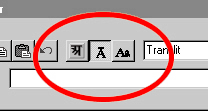 In order
to write a text in Transliteration, please first select the transliteration
mode by clicking on the transliteration-icon.
In order
to write a text in Transliteration, please first select the transliteration
mode by clicking on the transliteration-icon. After you have switched to Transliteration mode, you have some special functionality, that makes it very easy to find the diacritical marks you need.
If you have select part of the text or the cursor is inside a word, then this will be transformed into transliteration if you change to transliteration-mode. This applies to all three modes:
=>
Selected text will be transformed, when you change the modus
Writing in Transliteration:
In order to get a transliteration character with diacritical mark, you first press the pound-key [#] and then the letter you want. For à (long a, a-macron) press the key [#] and then [a]. If you have different versions of a letter, e.g. ù and ÷, then you can get the lower mark with [#] and the upper one with [shift + #], combinations with [ctrl + #] and [ctrl-shift+ #].
=> To
get a transliteration-letter, first press the [#] -key
=> To
get a transliteration-letter, first press the [#] -key
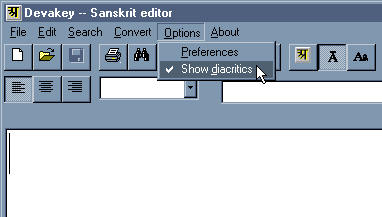 In
the menu under „Options/Show diacritics“ you can also display a table, that
always shows you all variations of transliteration-characters for the letter
you just typed. You can select one with the mouse.
In
the menu under „Options/Show diacritics“ you can also display a table, that
always shows you all variations of transliteration-characters for the letter
you just typed. You can select one with the mouse.
Vedic Accents:
The vedic intonation-signs ( aø a÷ a™ ) are placed on the key [<] . Before you have to press [#], [shift + #] or [ctrl + #] for the diacritical marks.